Automatically add clothes to your digital wardrobe from receipts and order emails
Every clothing purchase you make already comes with a record: an order confirmation in your inbox. That email names the piece, the brand, the colour, the price and often the product photo, which is everything your digital wardrobe needs. Your wardrobe can grow from your orders, with nothing to type.
Yes, ChatGPT and Claude can add your clothing purchases from Gmail. If you connect your email and Modebase to your assistant, it can read your order confirmation emails, list the clothes it finds, and add the ones you approve to your digital wardrobe. You do not need to take photos or type anything. It is the easy way to build a digital closet: your assistant does the finding and the adding, and you only say yes or no.
How to automatically add purchases to your digital wardrobe from Gmail
"Automatically" here means your assistant finds and adds the pieces for you, so you never add them by hand. You still approve the list before anything is saved.
You need two things connected to your assistant: your email (Gmail, for example) and Modebase. Your email connection is set up and approved in your assistant, not in Modebase, and the assistant only reads what you have allowed it to read. Modebase never sees your inbox. It only receives the pieces you tell the assistant to add.
Step 1: ask for a list, and add nothing yet
Try something like this:
Look in my email for clothing orders from the last month and list them. Do not add anything yet.
The assistant looks through your inbox for order confirmations and receipts, then lists what it found, for example a dress from one shop and a pair of boots from another.
Step 2: you choose what gets added
Read the list, then answer:
Add the dress and the boots to my wardrobe. Skip the rest.
Only the pieces you say yes to are added. Each one arrives with the brand, price, shop and purchase date from the order, plus the product photo when the email shows one. A piece with no photo is added and waits for you to supply one. If a piece with the same name is already in your wardrobe, it is not added twice.
An example
Say you ask for the last month of clothing orders. The assistant might reply with something like this (an illustration, your list will show your own orders):
- Black satin slip dress, bought 3 October, $129
- Tan leather knee boots, bought 9 October, $210
- White cotton tee, 2 pack, bought 12 October, $45
- A gift card for your sister, bought 14 October (not clothing)
You reply: "Add the dress and the boots. Skip the tees and the gift card." The dress and the boots appear in your wardrobe with their price, shop and purchase date, and their product photos if the emails had them. Now you can ask for outfits and the new pieces are included, for example "Style the new boots three ways for work."
Why the list comes first
You stay in charge of both steps. Returns, gifts and things you bought for someone else will show up in an inbox search too, and so will orders that are not clothes. Asking for the list first means nothing lands in your wardrobe that you did not choose.
Get the most out of it
- Start with a short window. Ask for the last month, check the result, then go further back.
- Name the shops. "Orders from Country Road, Zara and The Iconic" gives the assistant less to guess at.
- Say what to leave out. "Ignore underwear, gifts and anything I returned" saves you ticking them off.
- Make it a habit. Once a month, ask for "clothing orders since the first" and add the new ones.
Tips for the best results
It works best with order confirmations that spell out what you bought, so a detailed email gives the richest result. Emails that only say "your order has shipped" carry less detail, and older orders can take a second search. The assistant does the reading, so glance over the list before you say yes. If anything looks off, tell it and it will fix the entry.
Why it is the fastest way to catalogue your wardrobe
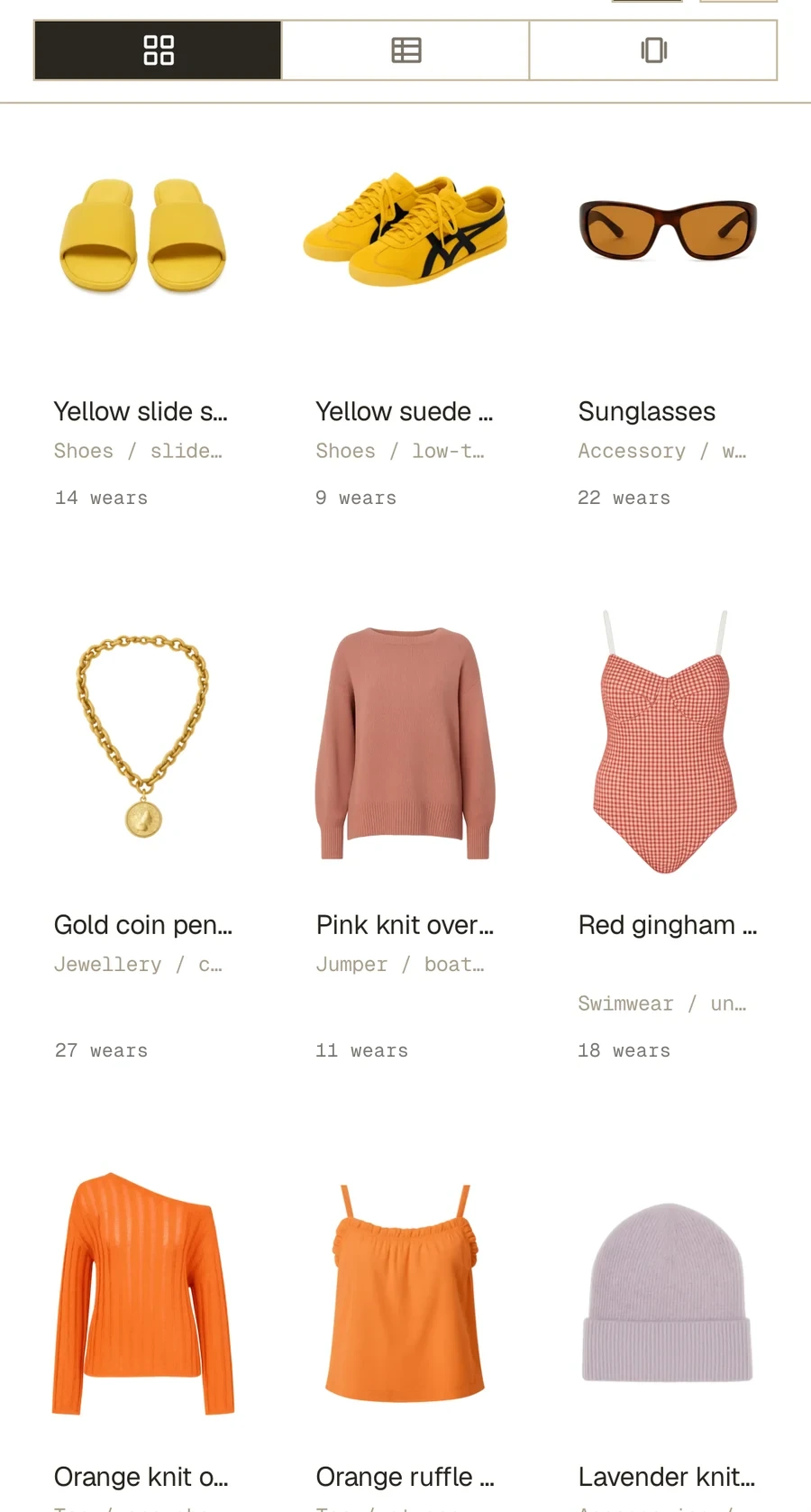
- No photos and no typing. This is how to digitize your wardrobe without taking photos. The order email already holds the name, brand, colour, price and often the photo, so you never enter them twice.
- Your wardrobe stays complete. A wardrobe you can ask about is only useful if it includes what you bought last week. The new dress that never made it in is the one your assistant cannot suggest, and the one you forget you own.
- You catch up in one go. Months of orders can be added in a single conversation, instead of one piece at a time.
- Cost per wear starts on day one. Price and purchase date are saved with each piece, so you can see what a piece really costs you over time. See how to calculate cost per wear.
- Nothing is added behind your back. You approve the list, and your assistant only reads the email you have allowed it to read.
No email connection? Three other ways to add purchases to your wardrobe
- Forward the email. Every Modebase account has a private inbox address. Forward an order confirmation to it and the pieces land in your wardrobe. Add a rule in your email settings that forwards receipts to the address, and new orders are added automatically. You will find your address on the Add via email page once you are signed in.
- Paste a receipt. Copy the text of the order, or a screenshot, into the chat and say "I just bought these, add them to my wardrobe."
- Paste a link. To add a Vestiaire purchase to your wardrobe, or anything bought second hand, paste the listing link and say "I bought this, add it to my catalogue." See Vestiaire in ChatGPT and your own wardrobe.
If you only want a piece and have not bought it yet, ask the assistant to put it on your wishlist instead. Your wardrobe is for things you own.
Start with what you already own
Most of the outfits in this guide are already hiding in your wardrobe. The hard part is seeing your clothes together. Photograph one outfit you already wear and Modebase picks out each piece for you. Then you can ask for outfits in the chat you already use, such as ChatGPT or Claude, and it answers from your own clothes. For example:
Look in my email for clothing orders from the last month and list them. Do not add anything yet.
Frequently asked questions
Can ChatGPT add my purchases from Gmail?
Yes, if you connect your email to ChatGPT as well as Modebase. The assistant finds recent clothing order confirmations, lists them, and adds only the ones you approve. Claude works the same way. Your email connection is set up in your assistant, not in Modebase.
Can AI read my order confirmation emails?
Yes. Your assistant can read the order confirmations you have allowed it to see and pick out the name, brand, colour, price, shop and date of each piece. It works best when the email spells out what you bought.
How do I add clothes to my digital wardrobe without taking photos?
Ask your assistant to find your recent clothing orders in your email and add the ones you choose. The product photo comes from the order email or the product page when it is available, and a piece without one waits for a photo.
What is the lazy way to build a digital closet?
Let your orders do the work. Ask your assistant to list your last month of clothing orders, say yes to the ones you want, and repeat once a month. You can also forward order emails to your private Modebase address.
Does Modebase scan my receipts?
Your assistant reads the receipt, an order email or a screenshot you share, and Modebase saves the pieces you approve. Modebase never sees the rest of your inbox.
How do I add a Vestiaire purchase to my wardrobe?
Paste the Vestiaire listing link, or the order confirmation, into your assistant and say you bought it. It adds the piece to your wardrobe.
Will the same piece be added twice?
No. If a piece with the same name is already in your wardrobe, it is skipped.
What if my assistant misses an order?
Tell it the shop or the rough date and ask it to look again, or paste the receipt or the product link into the chat and ask it to add that.